
How every part of Bargain Bot works
Step-by-step setup for shoppers’ offers, counter-offers, Deal Timer, Offer Inbox, Visual Funnels, Campaigns, Cost & Profit and more – with a screenshot for every feature. Click any screenshot to open it full size.
Get started
Turn bargaining on and give products a lowest price.
Turn on bargaining
Switch on Enable Bargaining Chatbot and save. The same tab sets the button position and icon, minimum quantity, bargaining rounds, attempt limits, the daily quota per shopper and the global discount rules (Pro).
Bargain Bot → General Settings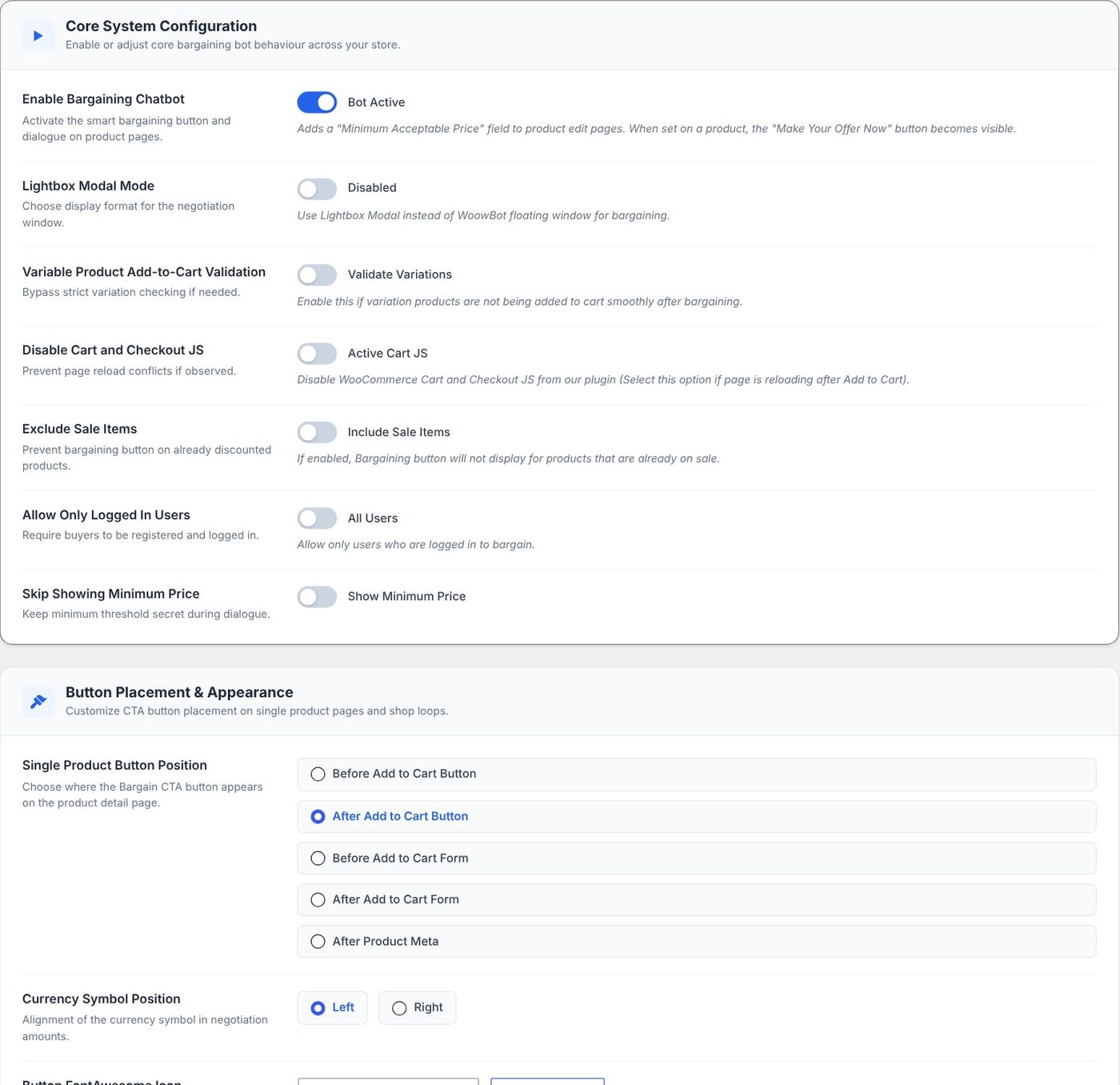
Set the lowest price on a simple product
Edit the product and open Product data → General. Fill in Bargain Price – the lowest price the bot may accept – and choose Bargain Type: Fixed Amount, or Percentage of the product price (95 allows up to 5% off; use Percentage with multi-currency plugins). Products without a Bargain Price do not show the button.
Products → Edit → Product data → General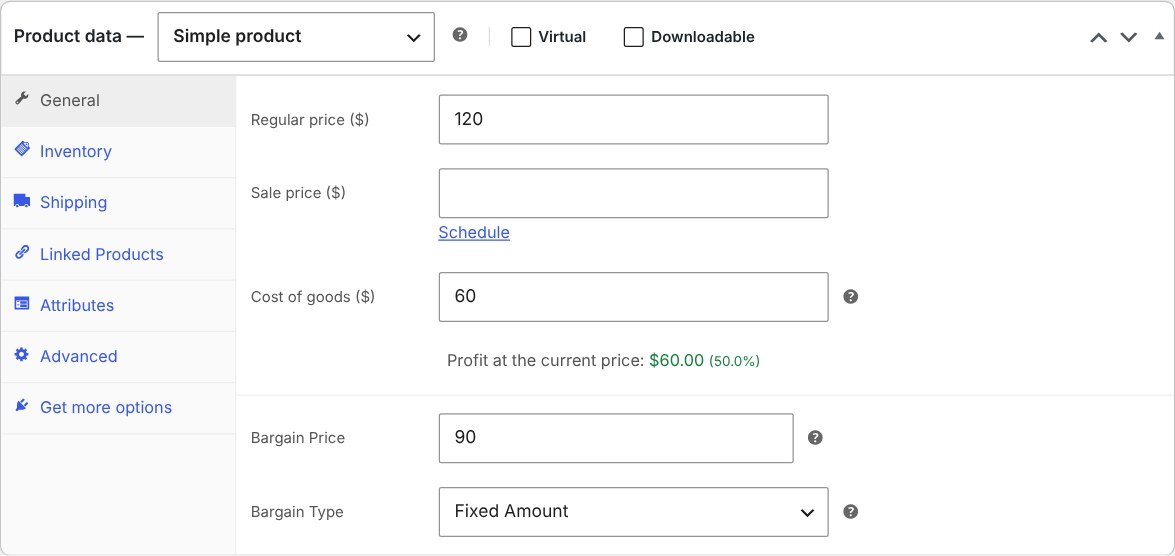
Set the lowest price on a variable product
Open Product data → Variations and expand a variation. Each variation has its own Bargain Price and Bargain Type, so sizes or colours can have different limits. The offer and the cart price are for that exact variation.
Products → Edit → Variations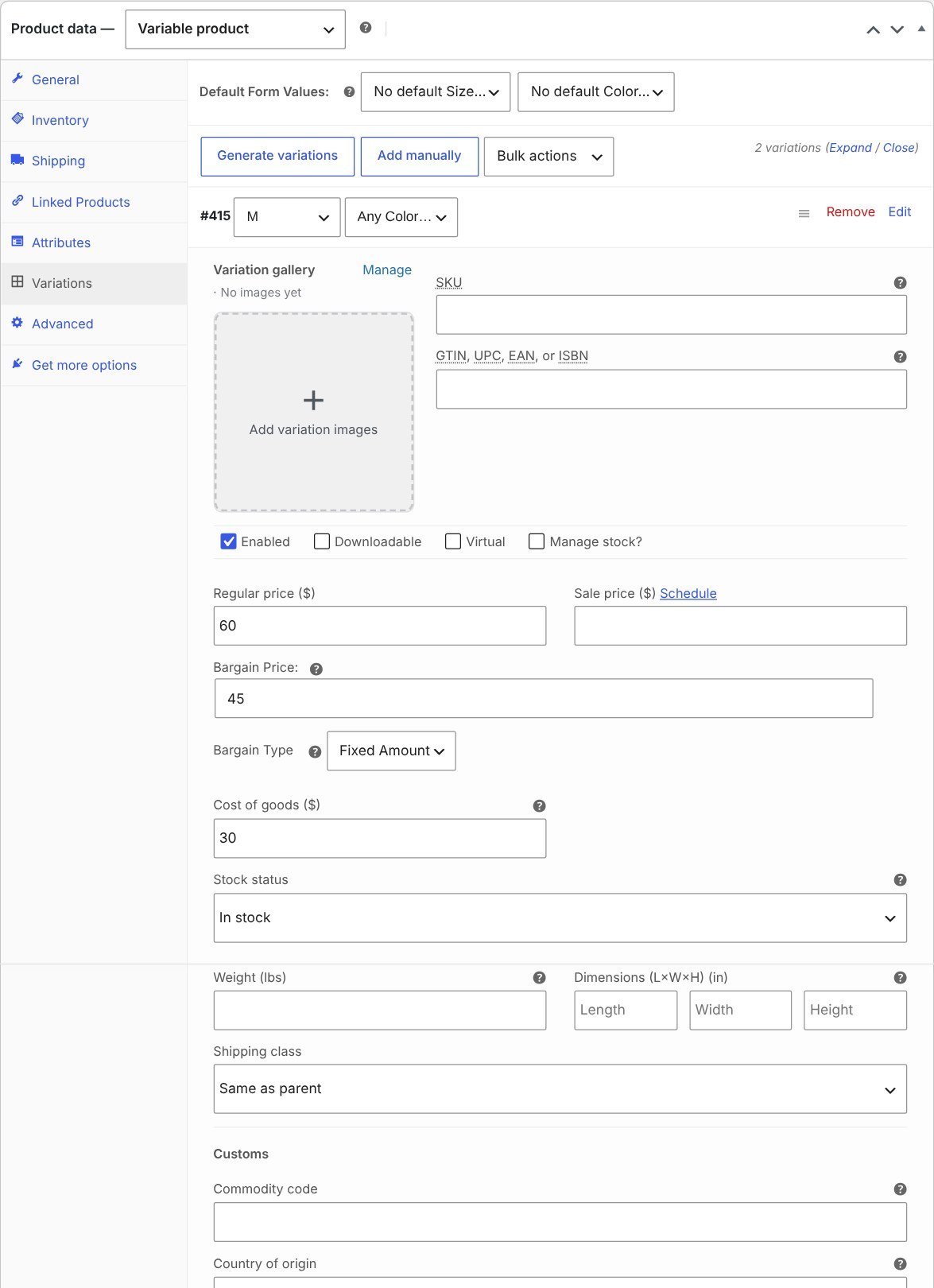
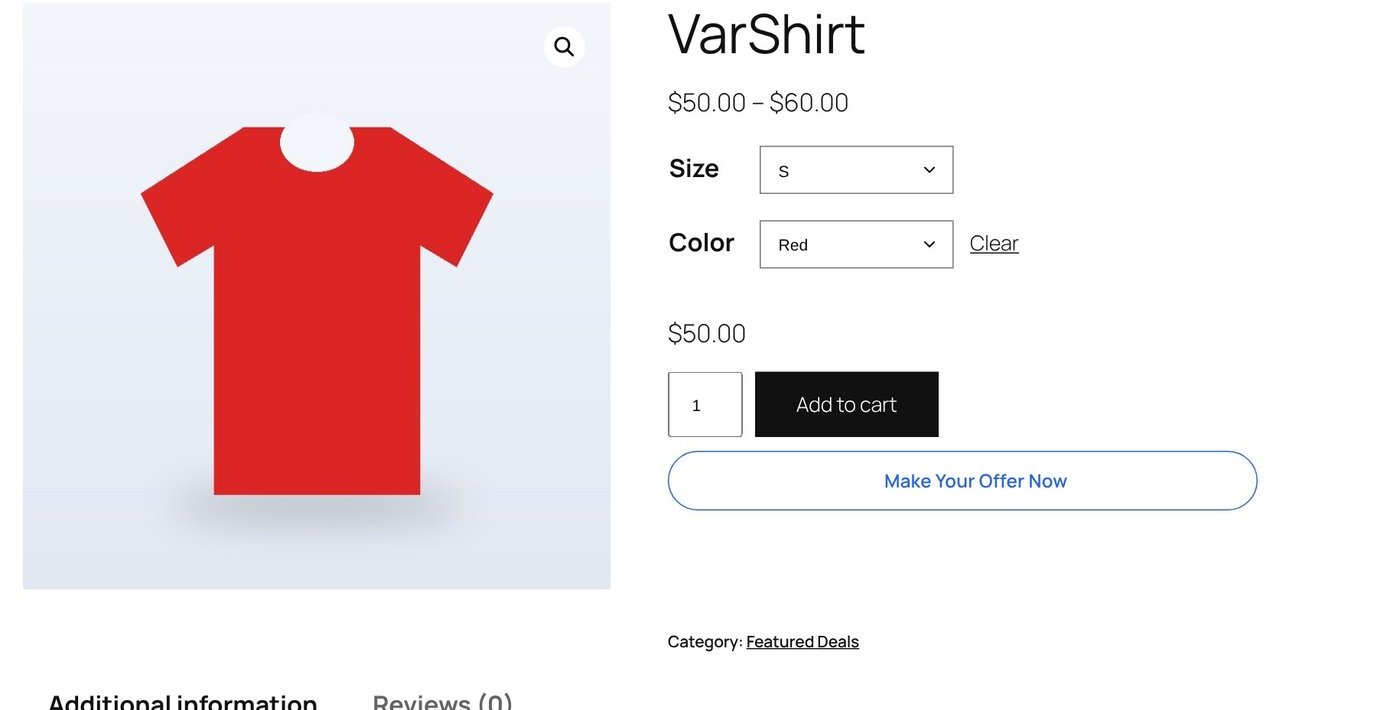
“Make Your Offer Now” on the product page
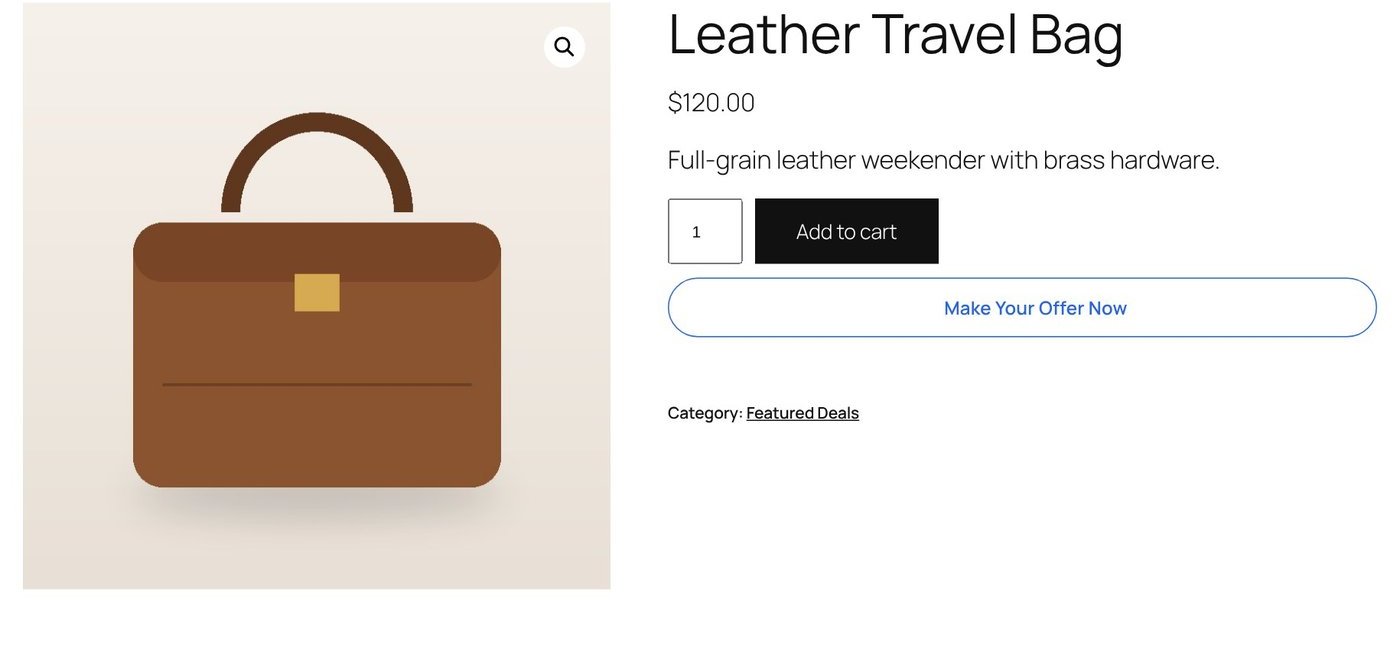
As soon as a product has a Bargain Price, the button shows on its page (after Add to Cart by default). Change the text in Language & Dialogues and the position in General Settings.
Variable products
The shopper chooses the options first, then makes an offer for that variation. Turn on Variable Product Add-to-Cart Validation if your theme needs it.
Shop and category pages
Turn on Shop Loop / Shop Page Bargaining to show the button under each product in the shop, categories and product grids.
Bargain Bot → General Settings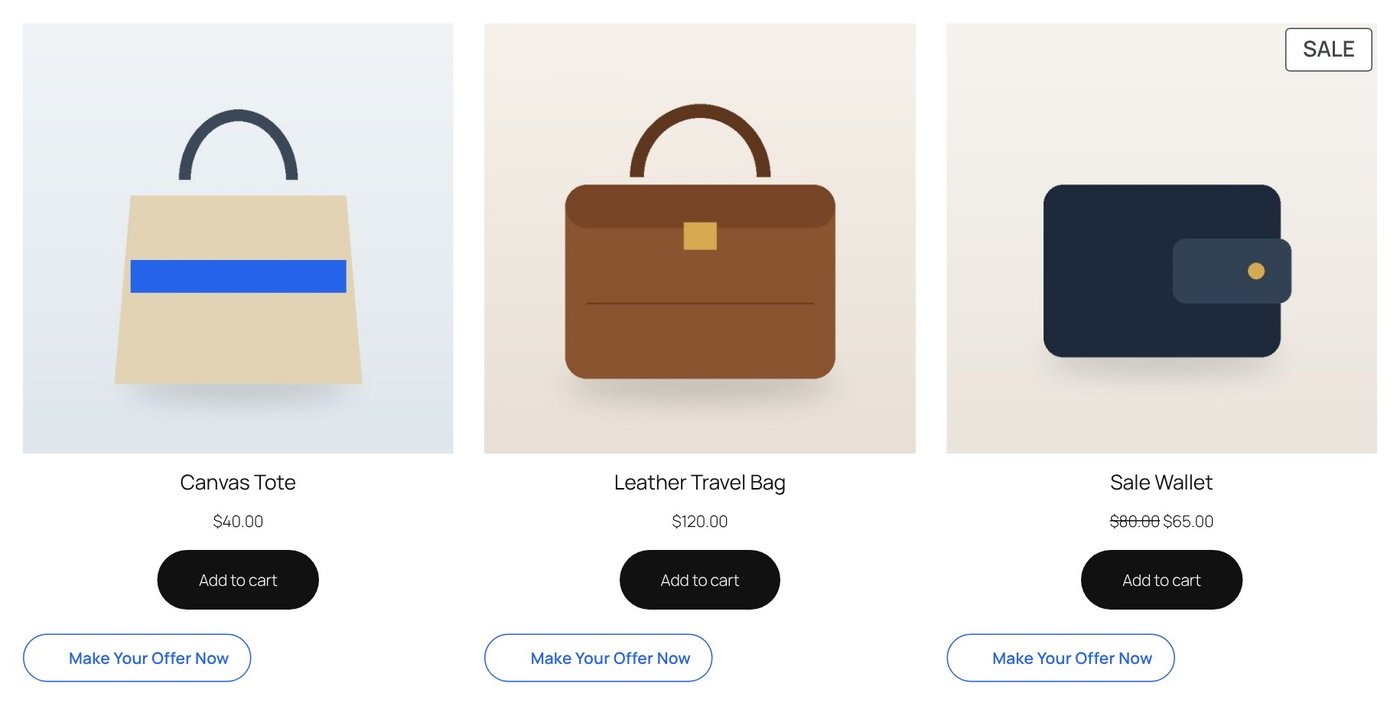
Place the button anywhere with a shortcode
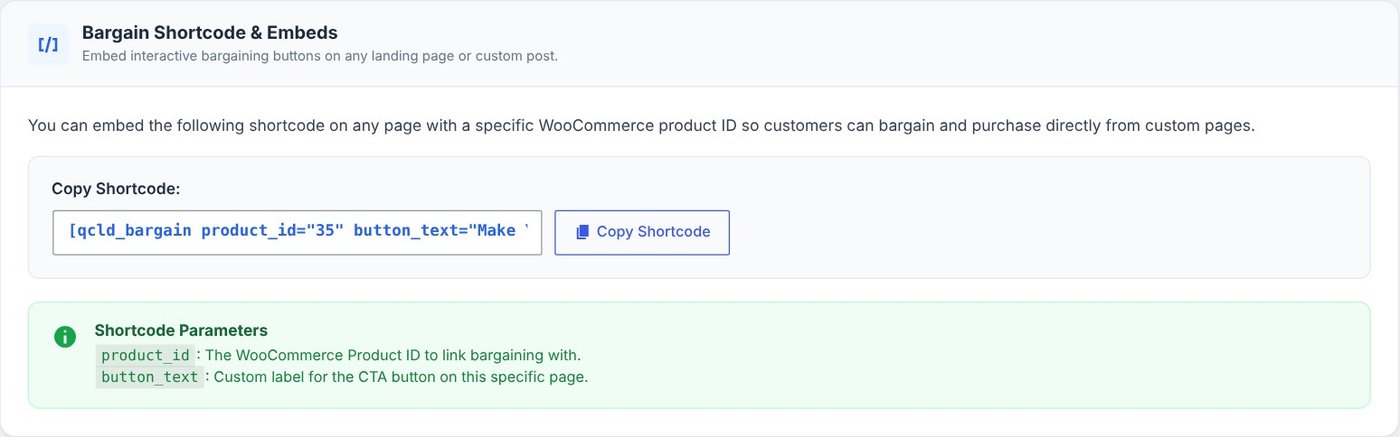
Copy a ready shortcode from the Shortcode tab for pages, landing pages or page builders:
[qcld_bargain product_id="35" button_text="Make Your Offer"]– the button for one product (Pro)[qcld_bargain_shop]– the button inside custom shop layouts (Pro)[qcld_bargain_funnel id="123"]– a Visual Funnel inline (Free)
What shoppers see
The offer window from first offer to checkout.
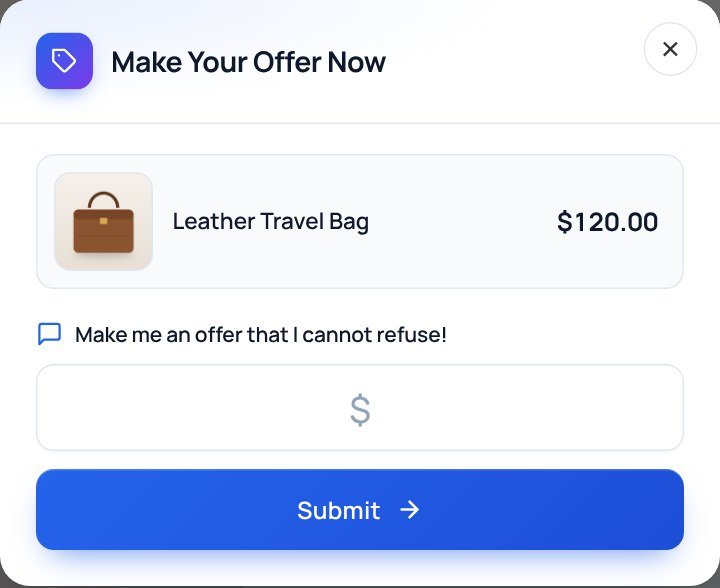
The offer window
The shopper types a price and presses Submit. An empty field makes the field and button shake; a valid price shows a spinner while the bot answers. No e-mail is needed to make an offer.
Low offer and counter-offer
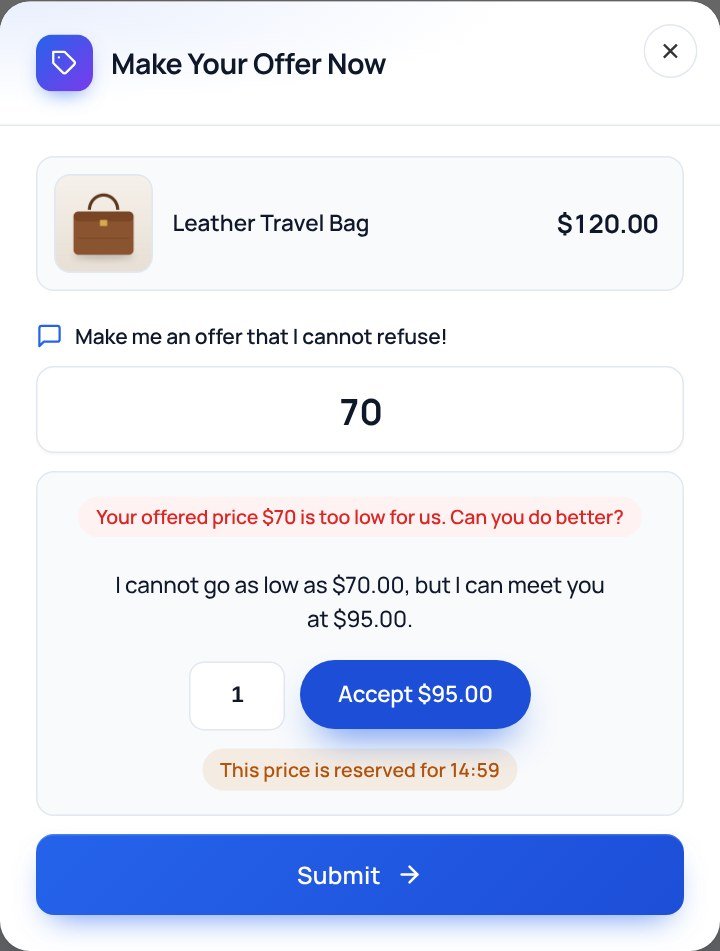
Below your limit, the bot asks for a better price or makes a counter-offer the shopper can accept with one click. Pro adds multi-step strategies (meet in the middle / step down).
Offer accepted + Deal Timer
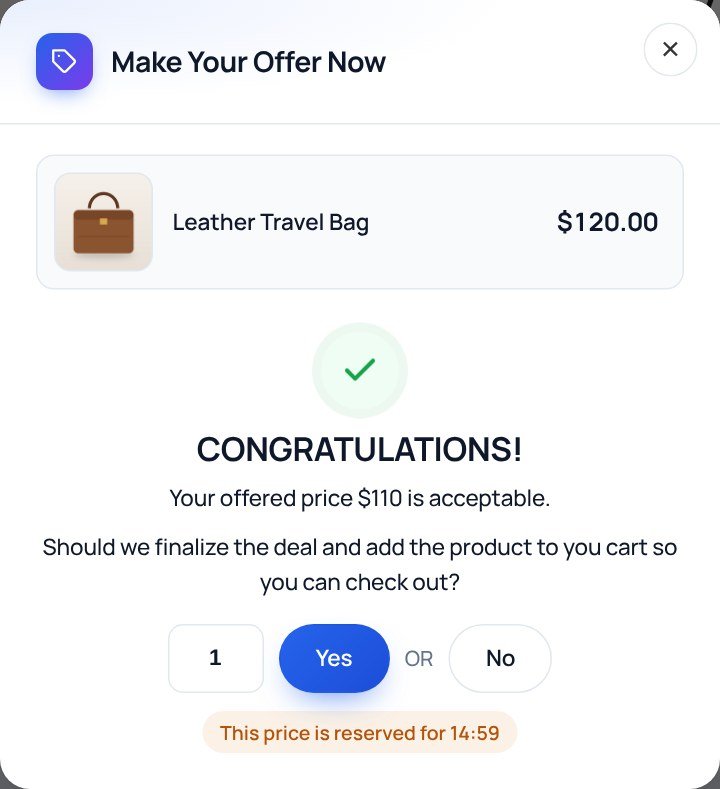
An acceptable offer shows a confirmation with quantity, Yes and No. Yes adds the product to the cart at the agreed price, and Price Security blocks any other price. With Pro the price is reserved with a live countdown in the window, cart and checkout.
“Talk to the boss” and e-mail capture
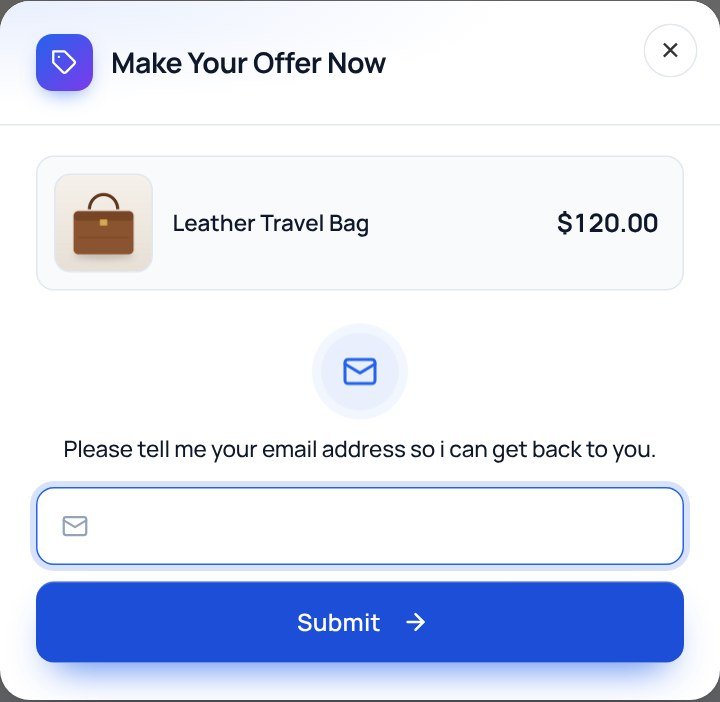
If the shopper says No, they can send a final price and their e-mail (or phone number, Pro). You get an e-mail; with Pro the offer also lands in your Offer Inbox.
Exit intent
When a shopper moves to leave a product page, a last-chance offer window can open. Set its title, text, button and how often it shows – or use exit-intent only mode without the button.
Bargain Bot → Exit Intent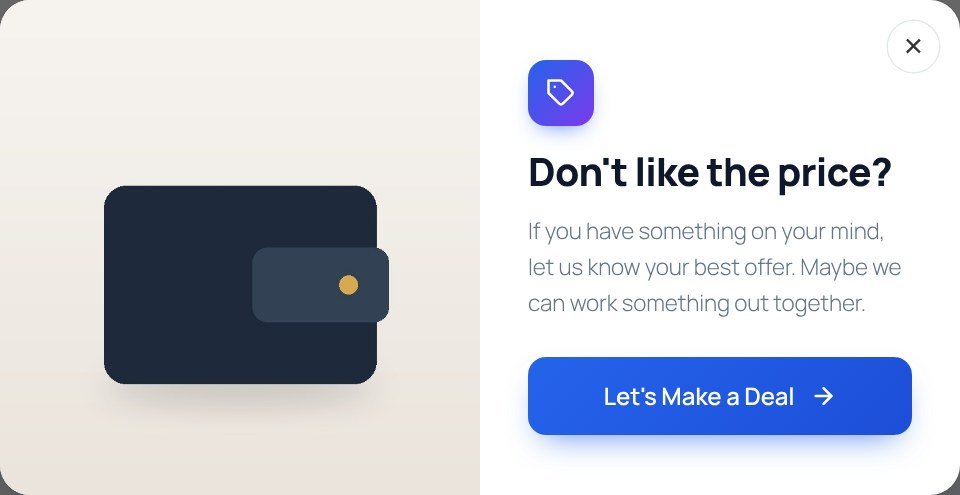
Exit Intent settings
Control the exit-intent title, message, button label and frequency (for example once per visit).
Bargain Bot → Exit Intent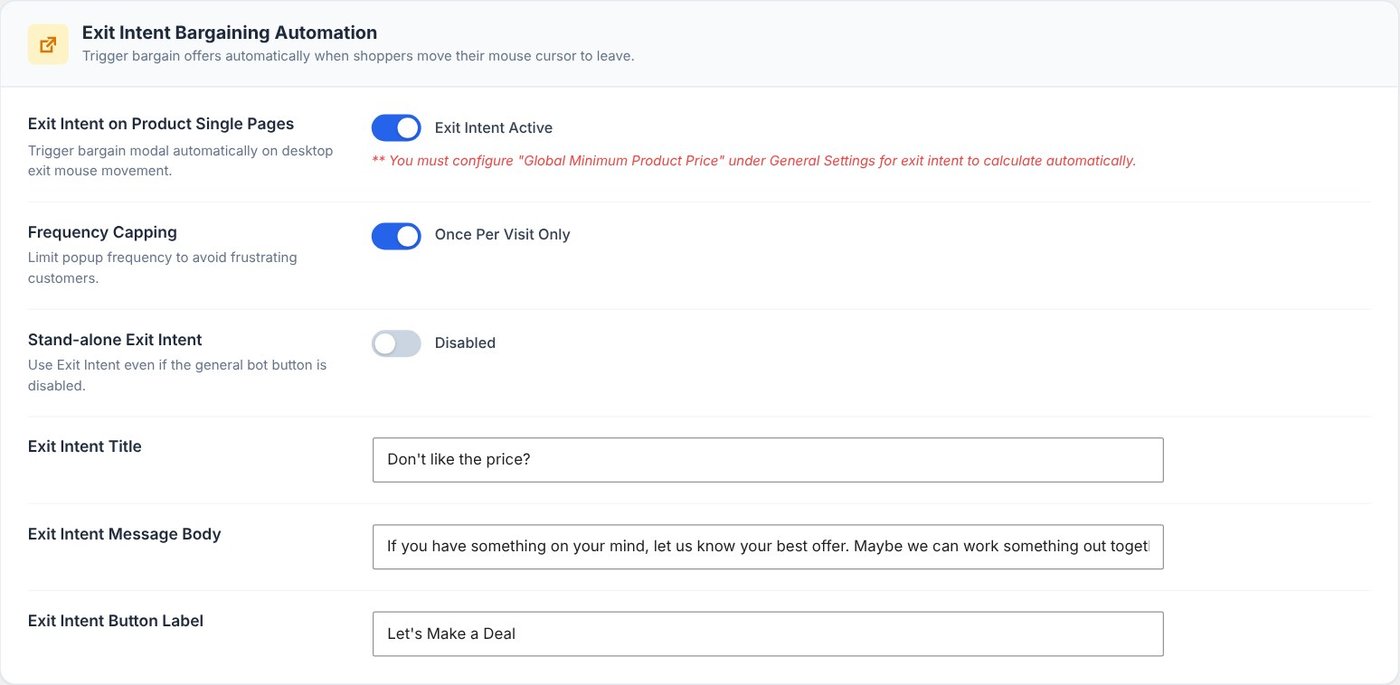
Visual Funnels before the offer
A funnel asks a few questions first – for example budget or use – then opens the offer window with rules that fit the answers. Try it live on the Visual Bargain Funnels page.
Bargain Bot → Funnels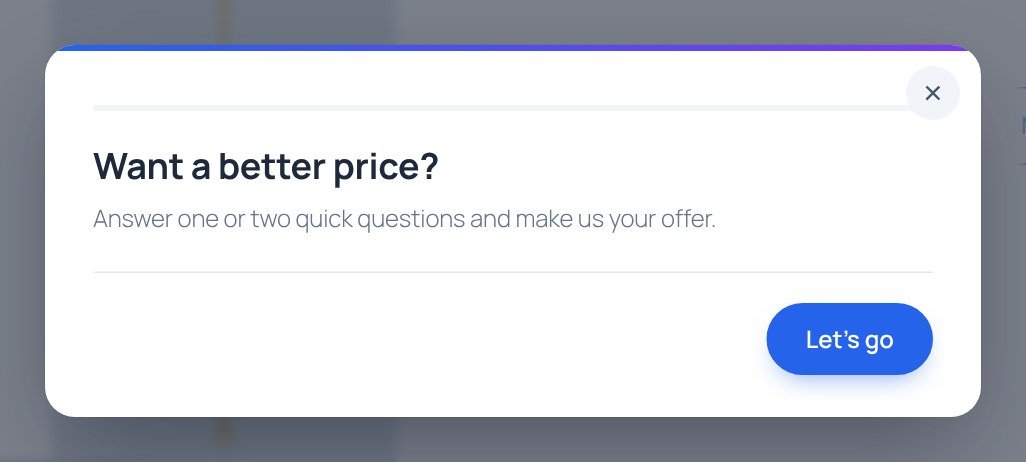
Rules & control
How far the bot can go, and in which words.
Language & Dialogues
Every message, button label and notice can be changed, in any language. Placeholders such as {offer price} and {minimum amount} are replaced with prices in your store currency.
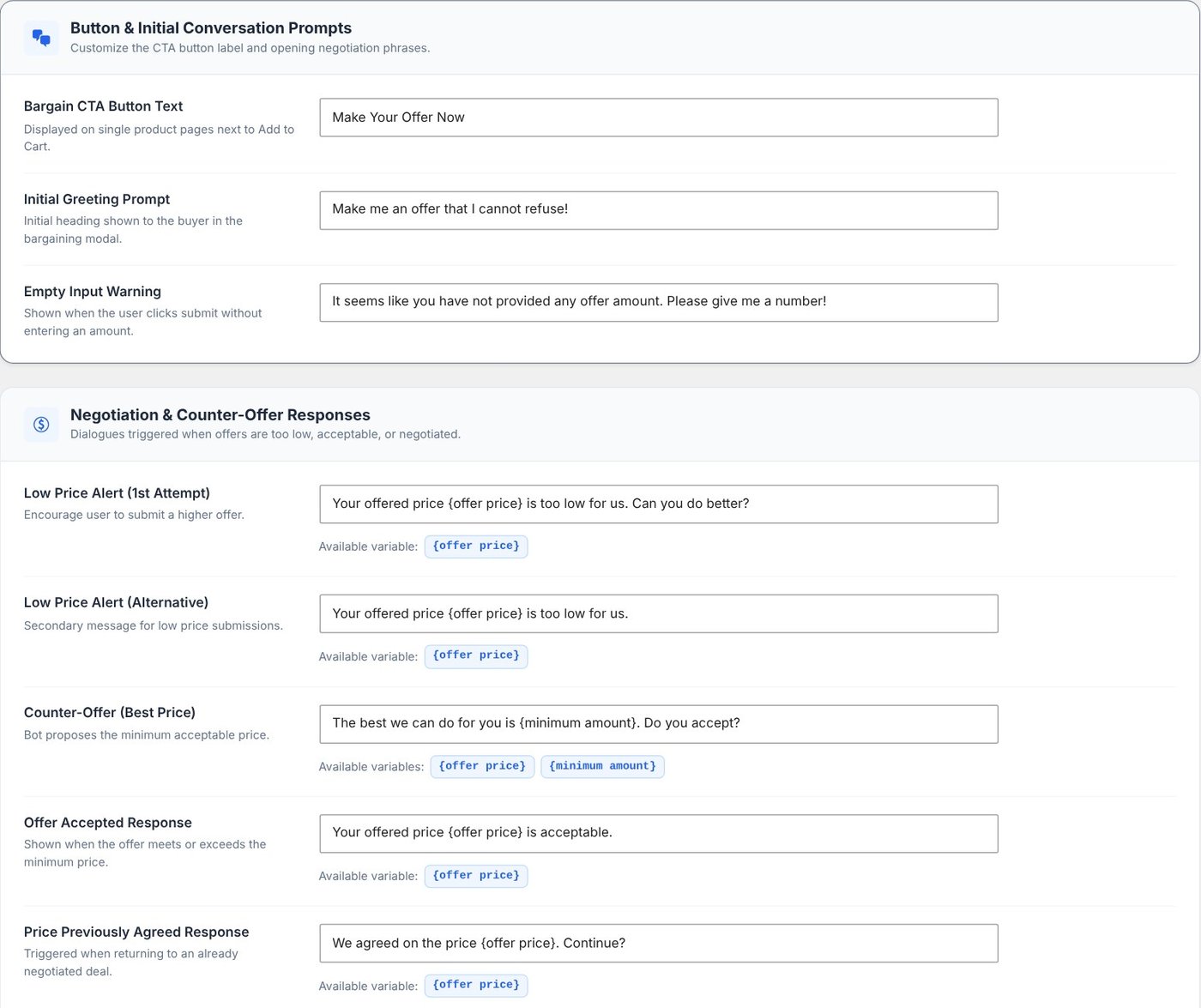
Category rules
Give whole categories a minimum price percentage instead of setting products one by one. A product’s own Bargain Price still wins.
Bargain Bot → Bargain Category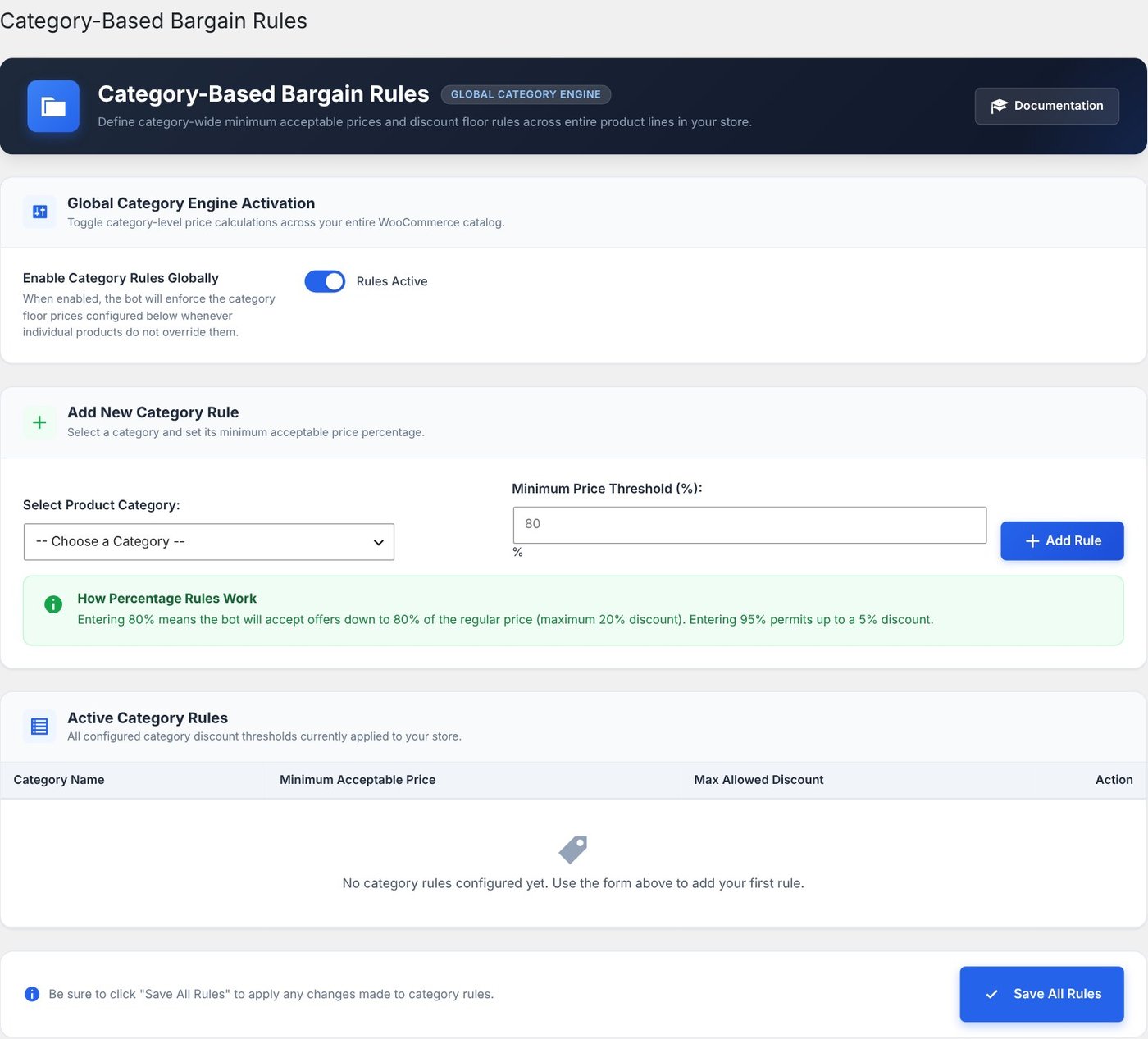
Price Security & Advanced Settings
Price Security (the cart only accepts agreed prices; blocked attempts are listed), the Deal Timer, counter-offer steps, random-discount mode with a stable floor per visitor, Offer Inbox options and data clean-up on uninstall.
Bargain Bot → Advanced Settings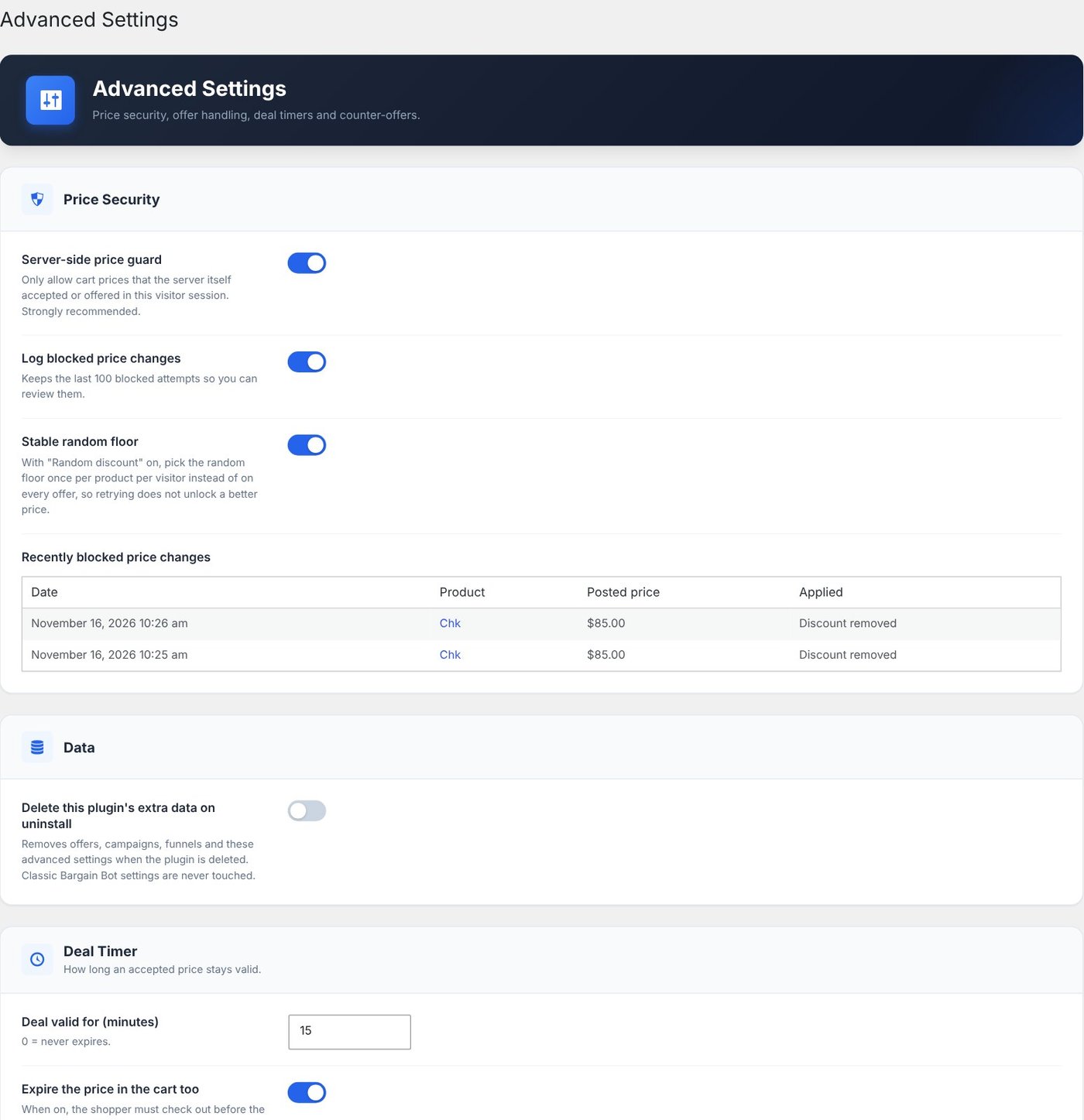
Campaigns
Run bargaining for a set time, for example Black Friday or a weekend sale: choose start and end, the lowest price %, categories or products, whether only campaign products can be bargained, and a badge text.
Bargain Bot → Campaigns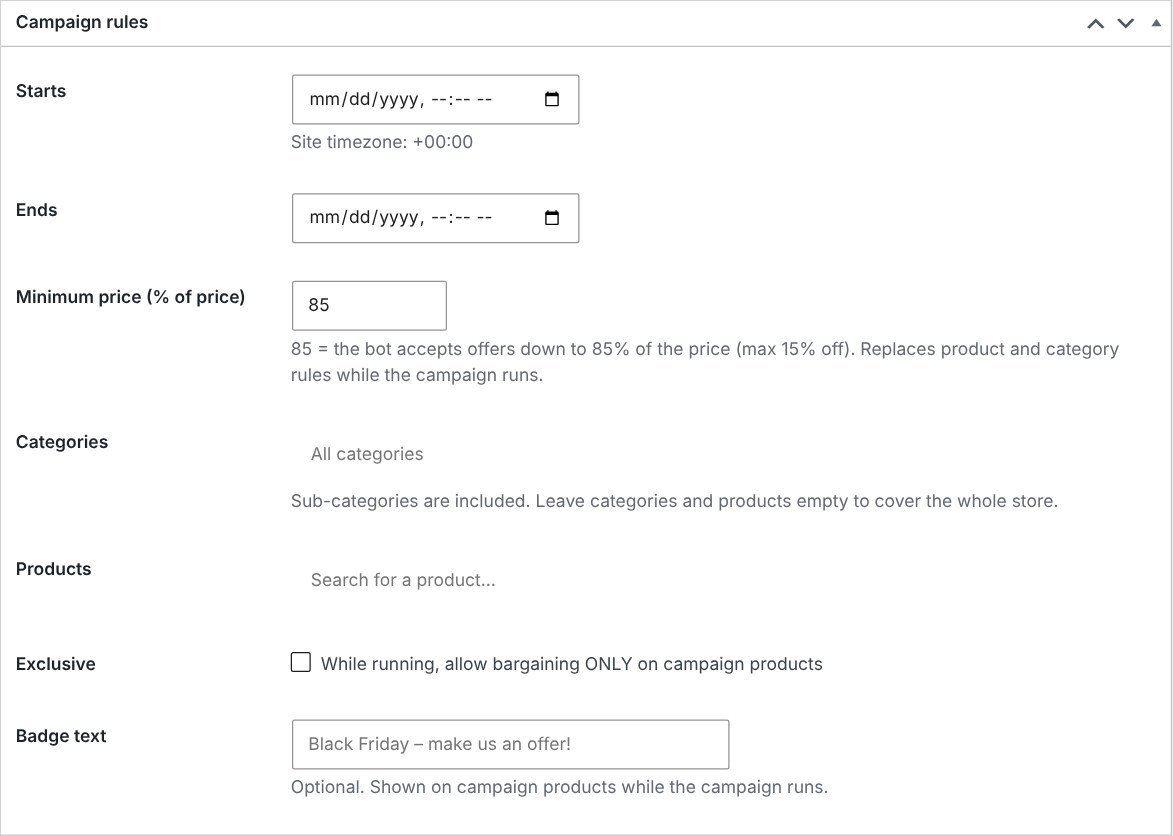
Offers & reports
Answer offers and see what bargaining earns.
Offer Inbox
Offers shoppers send to you are listed with their reference (OFF-00042), product, customer, offer, limits, profit and status. Click View to open one.
Bargain Bot → Offer Inbox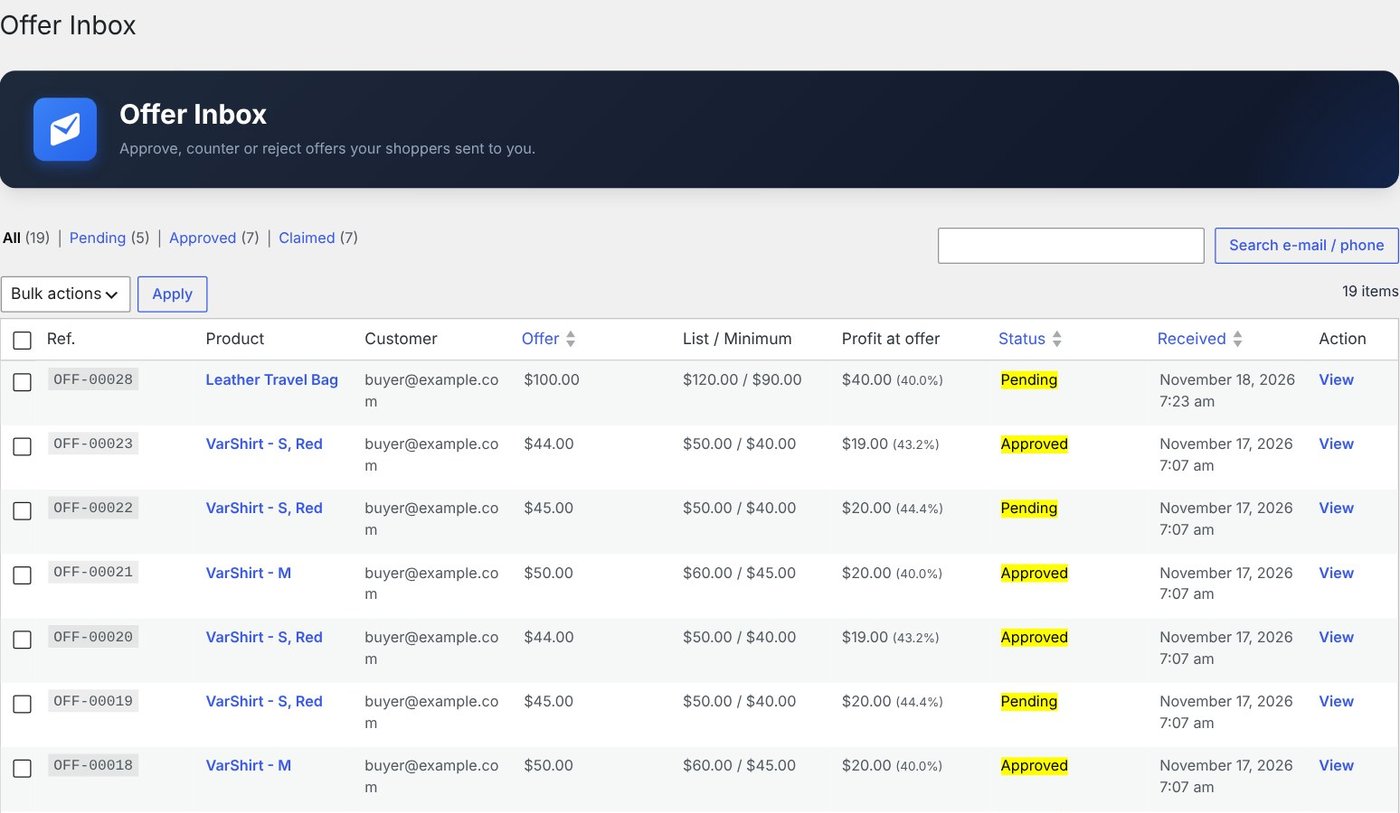
Approve, counter or reject
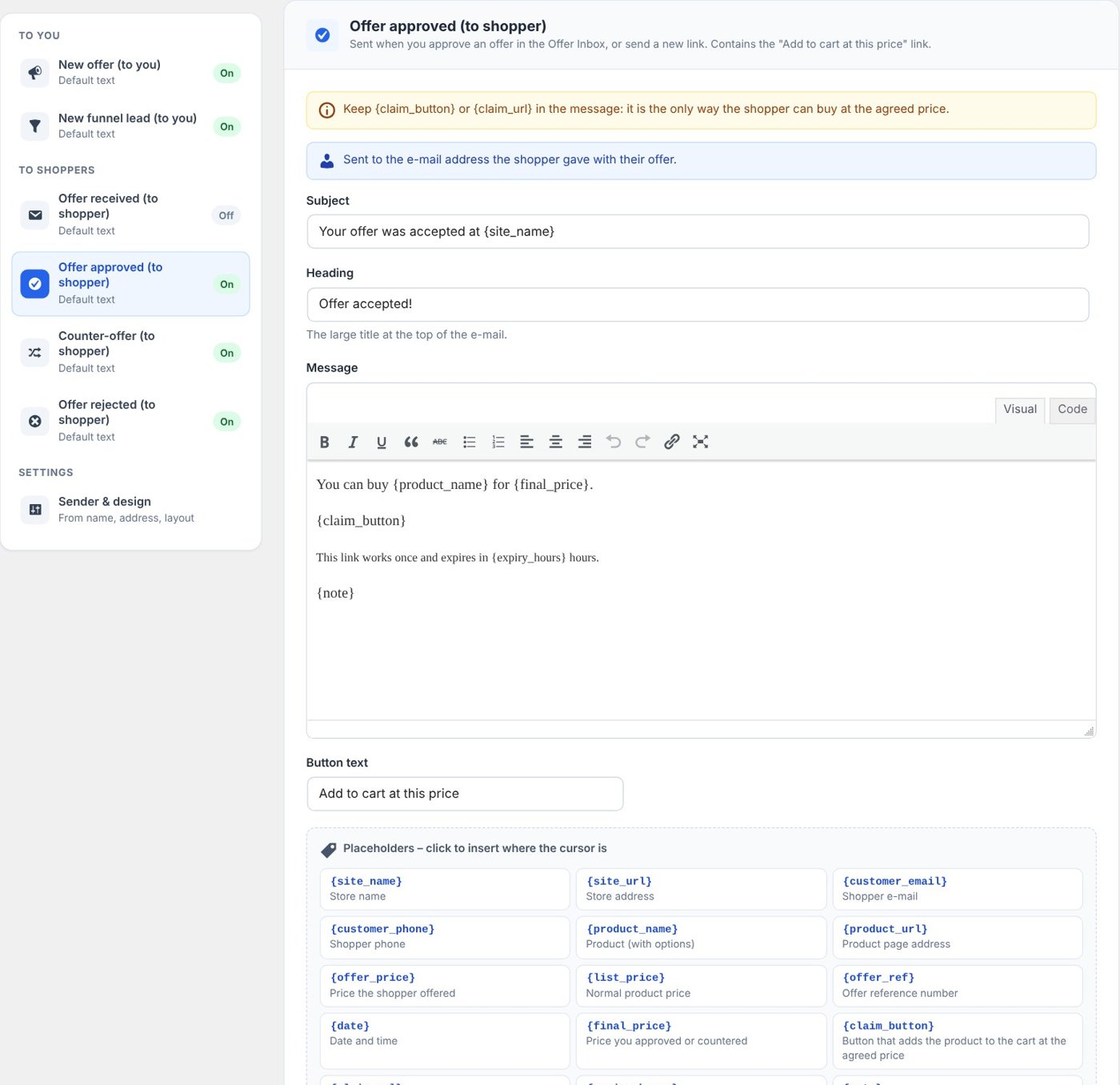
Approve, send a counter price or reject, with an optional message. The shopper gets an e-mail with an “Add to cart at this price” claim link for the right variation. If a link expires, use “Send a new link”.
Offer Inbox → View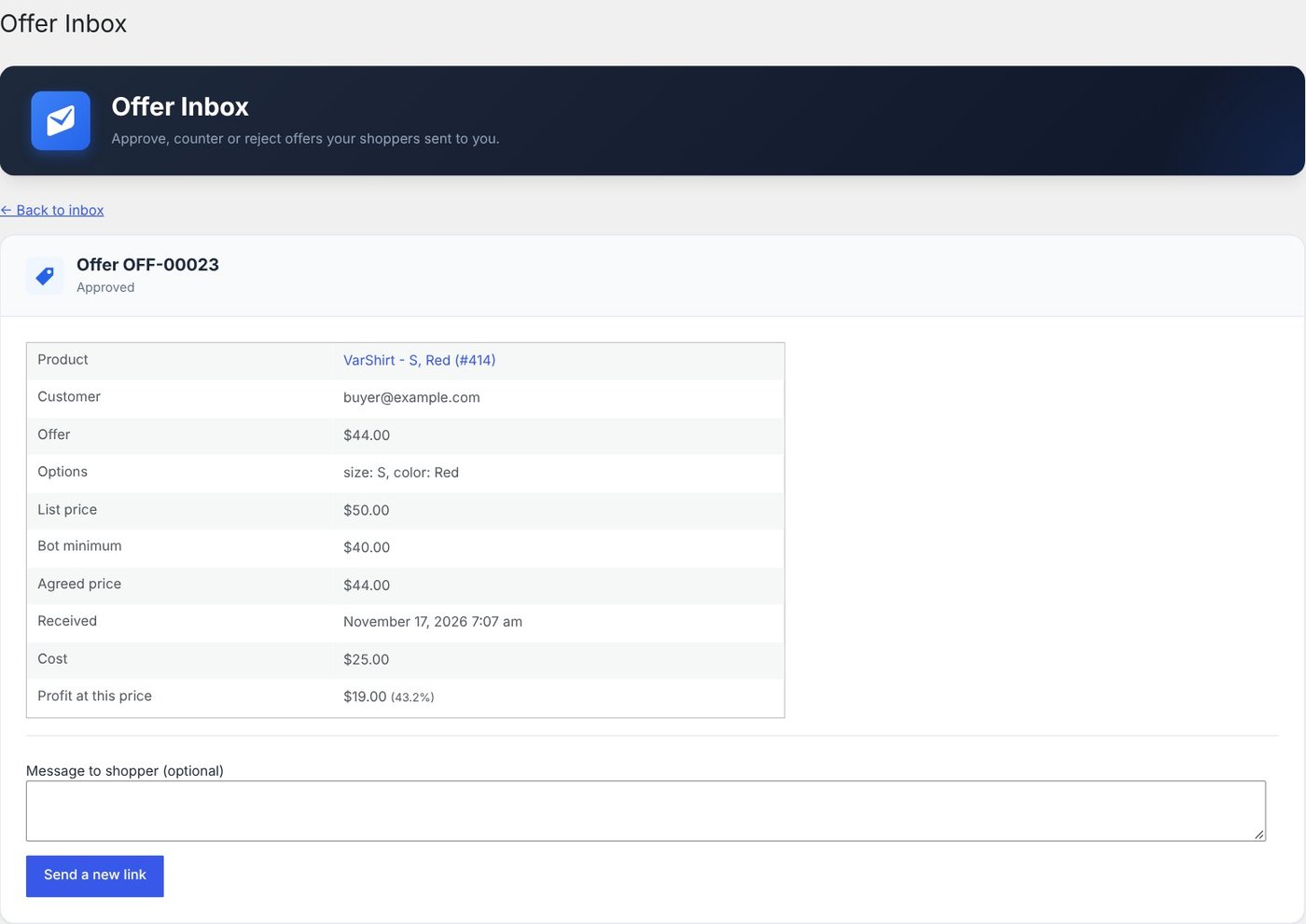
Email Notifications
Edit every e-mail Bargain Bot sends: new offer to you, offer received, approved, counter-offer and rejected e-mails to shoppers, and the funnel lead e-mail. Insert placeholders like {product_name} or {claim_button}, check the live preview, send a test, and set sender name, address, layout and button colour.
Reports
Negotiations, acceptance rate, average discount, bargain orders and revenue, discount given, inbox replies, blocked price changes, top products, revenue by source, campaigns and funnels – for any date range. Export offers as CSV.
Bargain Bot → Reports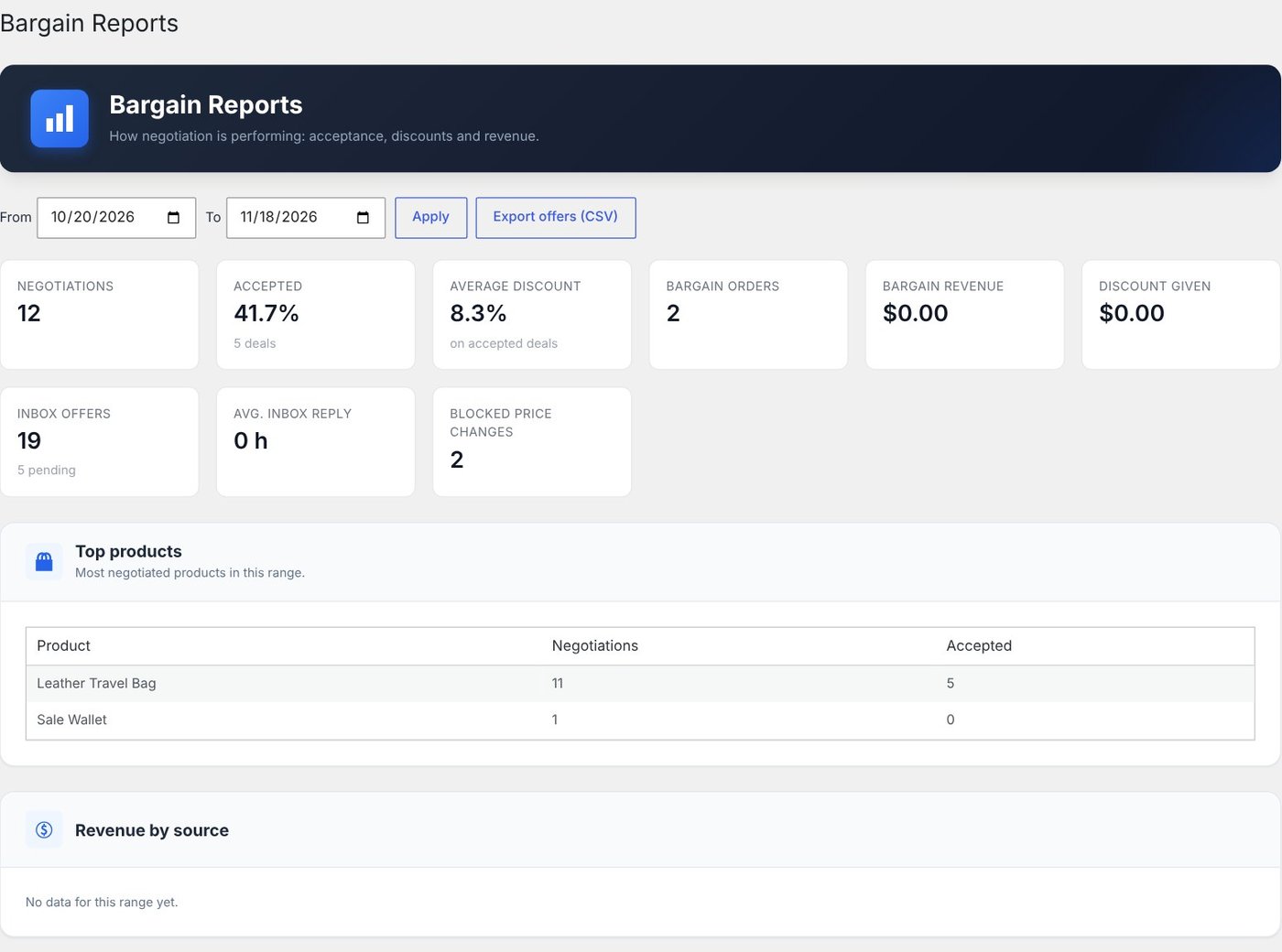
Store tools
Funnels, order numbers, costs and bulk editing.
Visual Funnels
Build question flows with drag and drop: 12 question types, scoring, conditions, lead forms and negotiation profiles, plus Leads & Responses, Analytics and signed webhooks (Free). Pro adds 7 extra templates, A/B tests, bargaining rules and coupons per answer, and display triggers (exit intent, delay, scroll).
Bargain Bot → Funnels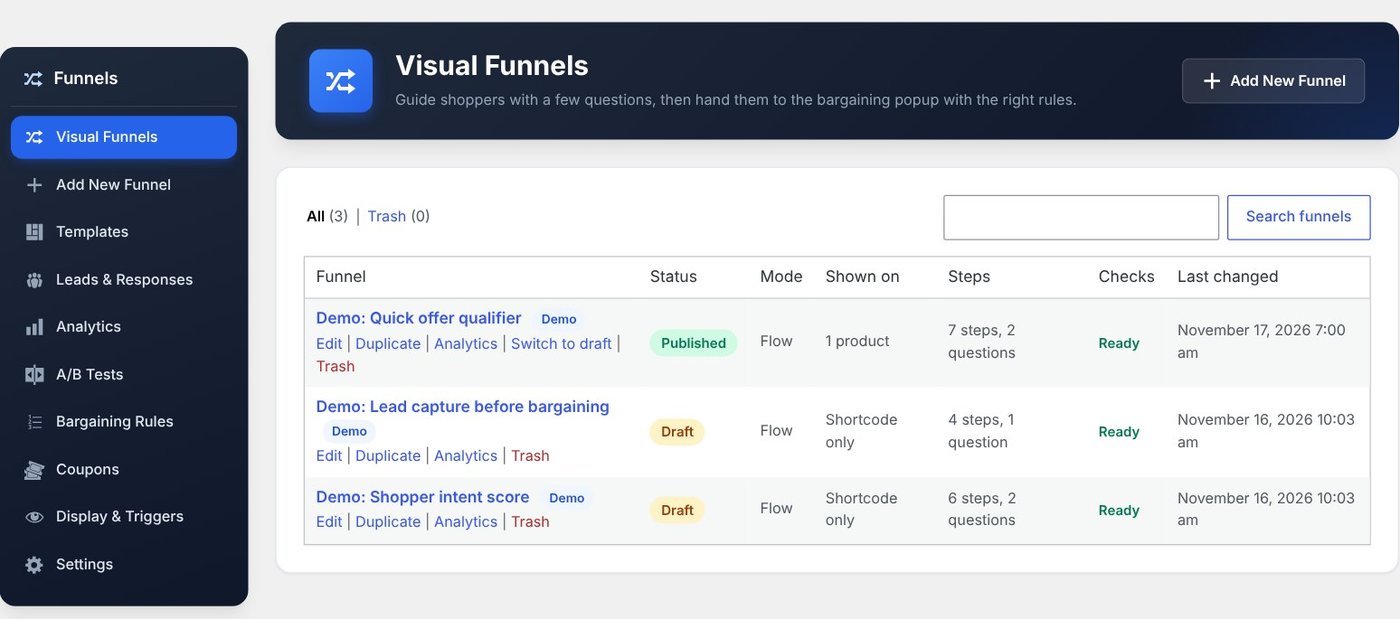
Order Numbers
Bargain and funnel orders get their own numbers (BRG-…, FNL-…), each with its own prefix and start number; other orders keep their WooCommerce number. Pro adds suffix, date parts, increments, resets, a custom template, offer reference numbers and renumbering of older orders.
Bargain Bot → Order Numbers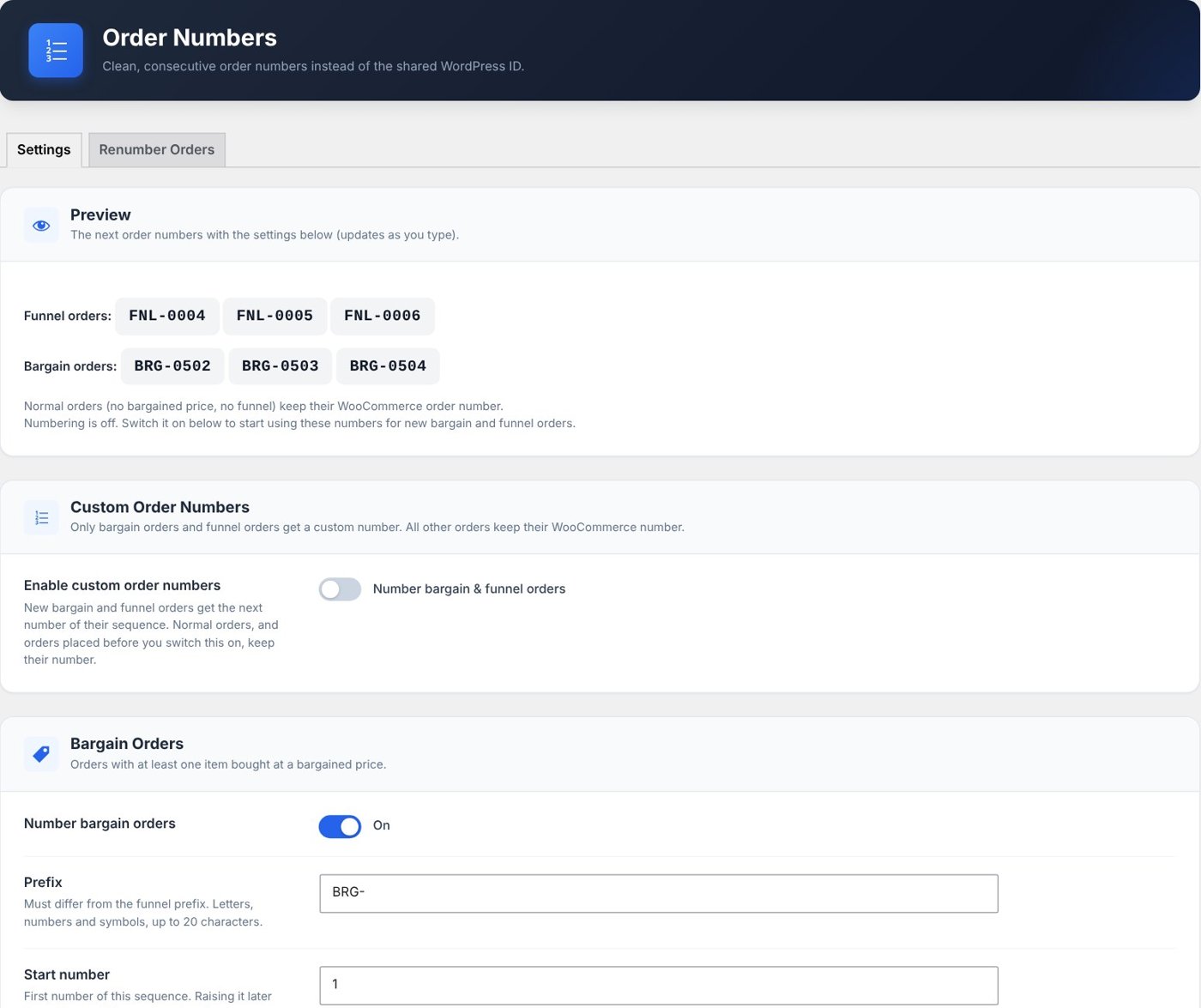
Cost & Profit
Save the cost of each product or variation and see profit on orders; the bot never goes below cost (Free). Pro adds minimum margins per store, category or product, margin-aware counter-offers, extra costs, stock purchases, a Cost Editor with bulk tools, and a bargain profit report.
Bargain Bot → Cost & Profit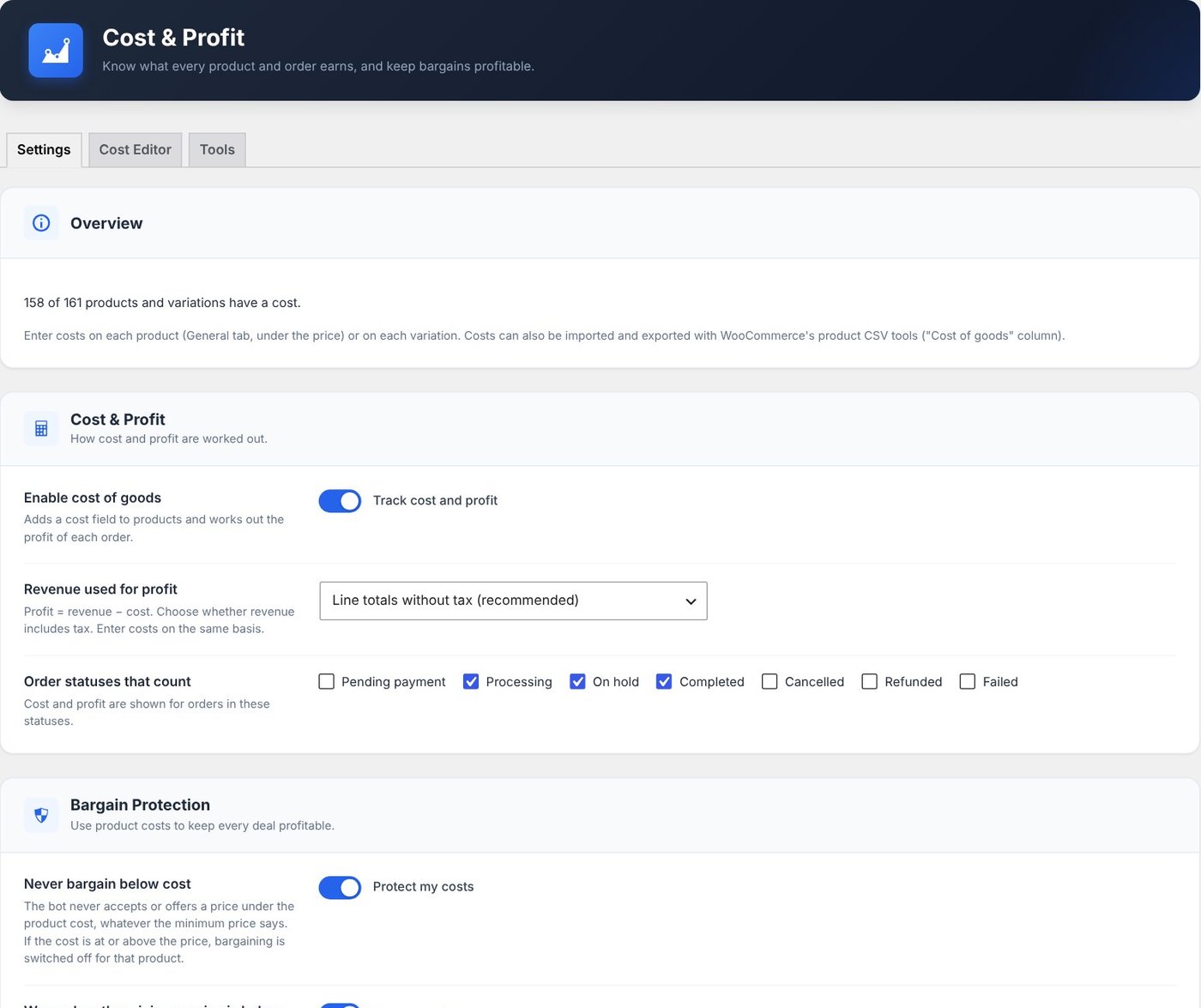
Import / Export
Export all products to CSV, fill in the Bargain Price column (P for percentage, F for fixed amount) and import it back to update many products at once.
Bargain Bot → Import / Export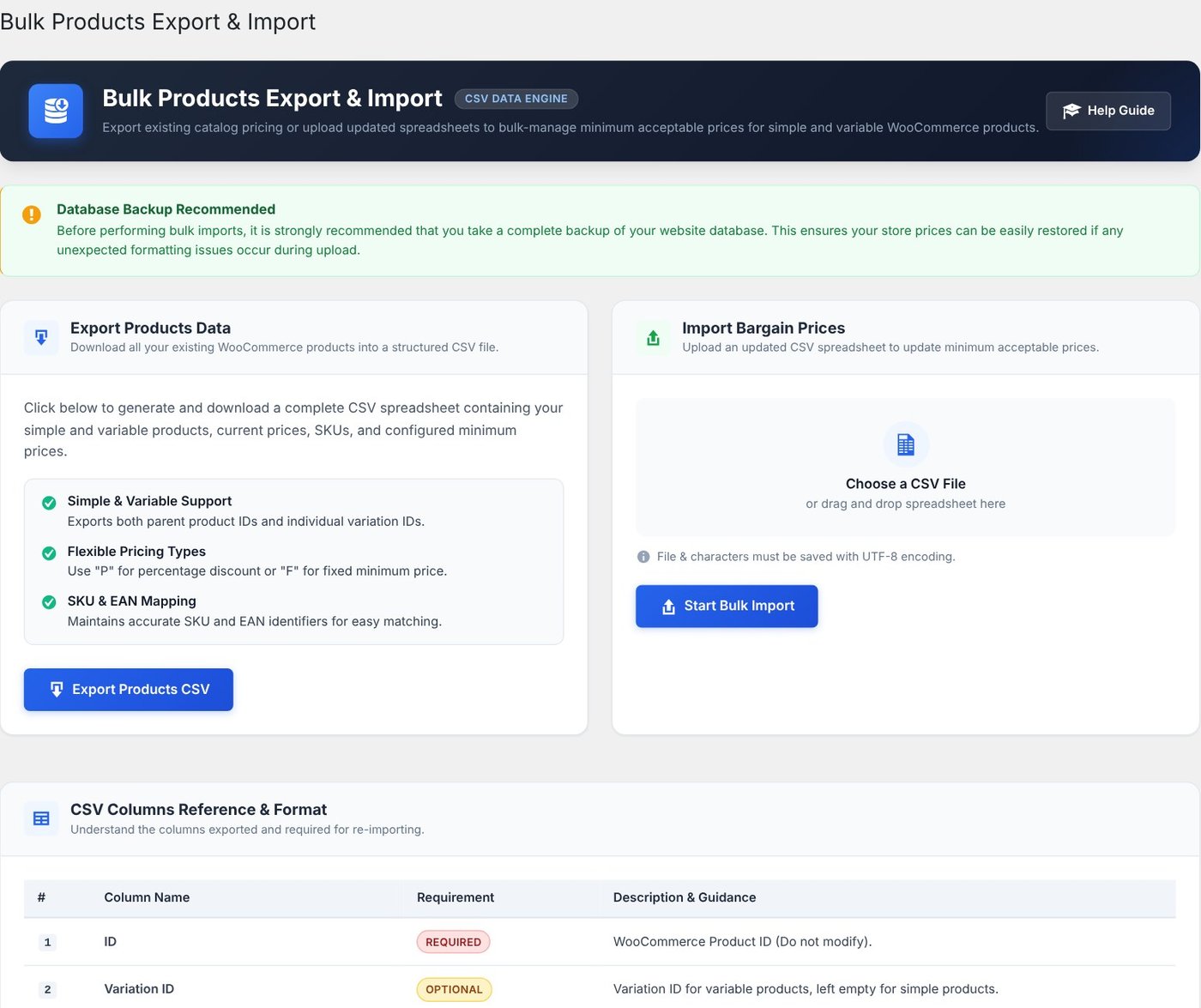
Troubleshooting & FAQ
Quick answers to the most common questions.
The button does not show
Check that bargaining is enabled, the product has a Bargain Price, and that “Exclude Sale Items” or “Allow Only Logged In Users” do not hide it.
Old look after an update
Clear your caching plugin and CDN, then hard-refresh the page. The plugin’s CSS and JS links change automatically when the files change.
An offer link does not add to the cart
Open WooCommerce → Status → Logs, source “bargain-bot”, for the reason. For variable products pick the variation on the offer page and use “Send a new link”.
How do I change the colours?
Add :root { --qcld-bargain-accent: #16a34a; } in the Custom CSS tab to recolour the button and offer window.
Will the bot ever sell below my cost?
No. Every bargained price is checked on the server, and with costs entered the bot never accepts or offers a price below cost (or your minimum margin in Pro).
Does it need the WoowBot ChatBot?
No. Bargain Bot works on its own in a lightbox on any WooCommerce site, and also as an add-on inside WoowBot.
Does it work with multi-currency plugins?
Yes – set the Bargain Type to Percentage.
Will my data carry over when I upgrade to Pro?
Yes. Free and Pro share settings, funnels, order numbers and costs.
Ready to let shoppers make an offer?
Start free from WordPress.org, or unlock the full negotiation engine with Pro.